Clear the stage before you share.
Stagehand lives in your menu bar. The moment Zoom, Teams, Meet in Chrome or a ⌘⇧5 recording starts showing your screen, it hides your desktop icons, the Dock, other apps and menu bar clutter, turns on Do Not Disturb and keeps the Mac awake. When sharing stops, it puts every change back.
Pay once · macOS 14+ · Apple silicon & Intel · No Screen Recording permission · Already bought? Download Stagehand
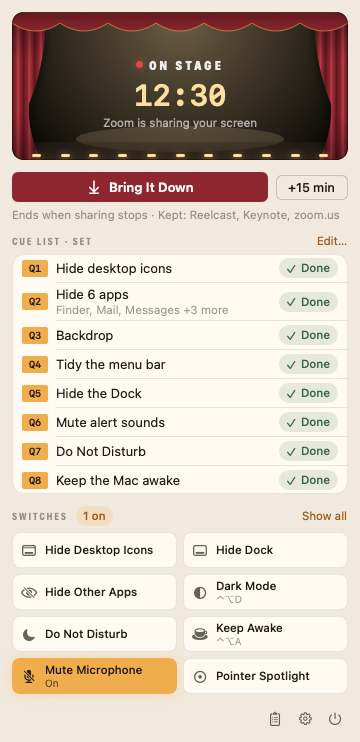
A working model, not a video — sample data. The pretend Mac, its call app, chat and files are made up, and nothing here changes your real Mac. A share started by an app goes live at once; the 3·2·1 countdown is for shows you start yourself. While the model has focus, S, D and M work without the modifiers.
- Pay once, no subscription
- No account
- No Screen Recording permission
- Puts every change back
- 14-day refund
A stage crew for every share.
No more “sorry, one second” while you hunt for the Dock setting. Stagehand sets the stage when the show starts and strikes it when it ends.
Automatic Recording Mode
Starts when an app begins sharing or recording your screen, and ends when it stops. It needs no Screen Recording permission.
Undo you can trust
Every change is written to a journal before it’s made and undone in reverse. A crash or restart mid-show is put right at the next launch.
Leaves your changes alone
Bring the Dock back or unhide an app during a show, and Stagehand doesn’t touch it at the end.
Backdrop
A colour, gradient, mesh, your own picture or your wallpaper blurred, placed just behind the front window so viewers see your app and nothing else.
Quiet, please
Do Not Disturb, muted alert sounds and no sleep for as long as the show runs, then each set back the way it was.
Countdown, time limit, resolution
An optional 3·2·1 for shows you start, an end time with +15 min, and a 1080p or 1440p preset for recordings.
Menu bar tidy
⌘-drag icons to the left of Stagehand’s divider and they disappear during a show. No private APIs, no Accessibility.
Thirteen switches
Dark Mode, Hide Desktop Icons, Hide Dock, Do Not Disturb, Keep Awake, Mute Microphone, Lock Keyboard for cleaning, Pointer Spotlight and more, each with its own hotkey and auto-off.
Run sheets
A record of every show: what it changed, what it put back and what it left as you set it. Kept on your Mac only.
Comparing screen-sharing cleanup apps? Read the guide: the best apps to tidy your Mac before you share your screen
It sees the share. Not your screen.
macOS has no public “your screen is being captured” signal, so Stagehand recognises what sharing puts on screen: the frame a call app draws, a browser’s “sharing your screen” bar, the Stop button of a ⌘⇧5 recording. It reads only which app owns each window and where it sits — never titles or contents — so it doesn’t need Screen Recording permission. Screenshots never start it.
It can’t see sharing from Safari, FaceTime or SharePlay, the Screen Sharing app, AirPlay mirroring, or recorders that show nothing on screen. For recorders like OBS or Loom, choose “start whenever this app is open”, or start a show yourself from the menu, with ⌥-click, the ⌃⌥⌘S hotkey or a stagehand://start link.
- Calls sharing a screenZoom, Microsoft Teams, Webex and Slack, by the frame they draw around a shared screen.
- Browsers sharing a tab or screenChrome, Edge, Brave, Arc, Vivaldi, Opera and Firefox, by their “sharing your screen” bar.
- macOS screen recording⌘⇧5 and QuickTime Player, by the Stop button in the menu bar.
- ReelcastAs soon as our recorder’s capture bar appears, so the first frame is already clean.
- Also on calls (optional)A call app running while the microphone or camera is in use. Off by default: a call isn’t a share.
Every screen, light and dark.
Screenshots straight from Stagehand, with sample shows and run sheets. Flip between light and dark.


What stays. What connects.
Stagehand watches the shape of your screen, not what’s on it.
Stays on your Mac
Everything Stagehand sees and remembers.
- ✓Which windows are on screenThe app that owns each one and where it is, once a second. Never titles or contents
- ✓Microphone and camera in useOnly with “Also when I’m on a call” on, and never recorded
- ✓Settings, journal and run sheetsIn
~/Library/Application Support/Stagehand - ✓How you use itNo analytics or tracking in the app
Connects
Two small requests, over HTTPS.
- 1License checkYour key and an activation ID, to Dodo Payments
- 2Update checkApp name and version, to
stagehand.newmac.app
The full list, for every app, is in the privacy policy.
Pay once. Keep it.
One payment, no subscription. Choose how many Macs you’ll use Stagehand on.
3 Macs
For your home and work Macs
Checkout opens soon. The buttons above go live here the moment it does.
Every plan includes
- One payment, no subscriptionEvery feature, yours to keep.
- License key by emailSent the moment you pay. Activate in one click.
- Move between MacsUse “Deactivate this Mac”, then activate on the new one.
- Free updatesNew versions install themselves.
- 14-day refundNot for you? Read the refund policy.
- macOS 14 or laterNative on Apple silicon & Intel.
Already bought? Download Stagehand · .zip · Install help
Questions, answered.
How does it know I’m sharing my screen?
macOS has no public “screen is being captured” signal, so Stagehand recognises what sharing puts on screen: the frame Zoom, Teams, Webex and Slack draw around a shared screen, the “sharing your screen” bar in Chrome, Edge, Brave, Arc, Vivaldi, Opera and Firefox, the Stop button macOS shows while recording (⌘⇧5, QuickTime) and Reelcast’s capture bar. It only reads which app owns each window and where the window is. It never reads titles or what’s on screen, so it doesn’t need Screen Recording permission. Screenshots never start it.
What can’t it detect?
Sharing from Safari, FaceTime or SharePlay, the Screen Sharing app, AirPlay mirroring, and recorders that show nothing on screen. For recorders such as OBS or Loom you can choose “start whenever this app is open”. A manual start (the menu, ⌥-click, the hotkey or a stagehand:// link) always works and stays on until you stop it.
Which permissions does it ask for?
Only when you first use a feature that needs one. Hide Dock and Dark Mode need Automation access to System Events, and Lock Keyboard needs Accessibility. Do Not Disturb needs two small shortcuts you make once in the Shortcuts app, because macOS offers no other way for an app to change Focus; Stagehand walks you through it. Hiding apps and icons, the backdrop, the spotlight, alert sounds, the microphone and keep-awake need no permission.
Does it change my Finder or Dock settings?
Desktop icons are covered with a copy of your wallpaper, so Finder isn’t touched or relaunched. The Dock is set to auto-hide and set back afterwards. Nothing is changed with defaults or by restarting the Dock.
What if Stagehand crashes mid-show?
The journal is on disk before each change. At the next launch Stagehand puts back everything that outlives it: the Dock, Dark Mode, alert volume, the microphone, Do Not Disturb and hidden apps. Its own windows, the keep-awake assertion and the resolution change end with the app automatically. Anything you changed back by hand is left alone.
What about Night Shift and True Tone?
They have no public API, only a private Apple framework, so Stagehand leaves them out rather than rely on one.
Is there a Shortcuts action?
Use Shortcuts’ “Open URLs” with stagehand://start, stop, toggle, extend or switch/<name>/on. A native Shortcuts action isn’t in this release.
Does it work with Reelcast and Vigil?
Yes. Stagehand sets the stage as soon as Reelcast’s capture bar appears, never hides Reelcast, and skips its own countdown so it doesn’t clash with Reelcast’s. Stagehand keeps the Mac awake only while a show runs; for timed sessions, long tasks and closed-lid mode, use Vigil. The two don’t conflict.
Does it send anything anywhere?
No. Settings and run sheets stay on your Mac. The only network use is license activation and update checks.
macOS says it can’t verify the developer.
Stagehand is distributed directly from this website. Here’s how to open it the first time.
Is there a free trial?
No. Use the working model at the top of this page to see exactly how Stagehand works. If it turns out not to be for you, you can ask for a refund within 14 days — see the refund policy.
Can I use Stagehand on more than one Mac?
Yes. The 3-Mac and 5-Mac plans cover several Macs with one license key. Any license can move to a new Mac: choose “Deactivate this Mac” in Stagehand on the old one, then activate on the new one.
Share your screen. Not your desktop.
Stagehand clears the stage the moment you share, and puts it all back when you stop. Pay once and keep it.